> ## Documentation Index
> Fetch the complete documentation index at: https://koreai-ai-for-service-dev.mintlify.site/llms.txt
> Use this file to discover all available pages before exploring further.
# Using the Salesforce CRM Action Templates
[Back to Actions Integrations](/ai-for-service/integrations/overview#actions)
Use prebuilt Salesforce CRM action templates to auto-create dialog tasks for managing leads and opportunities.
**To access templates:**
1. Go to **Automation AI** > **Use Cases** > **Dialogs** and click **Create a Dialog Task**.
2. Under **Integration**, select **Salesforce**.
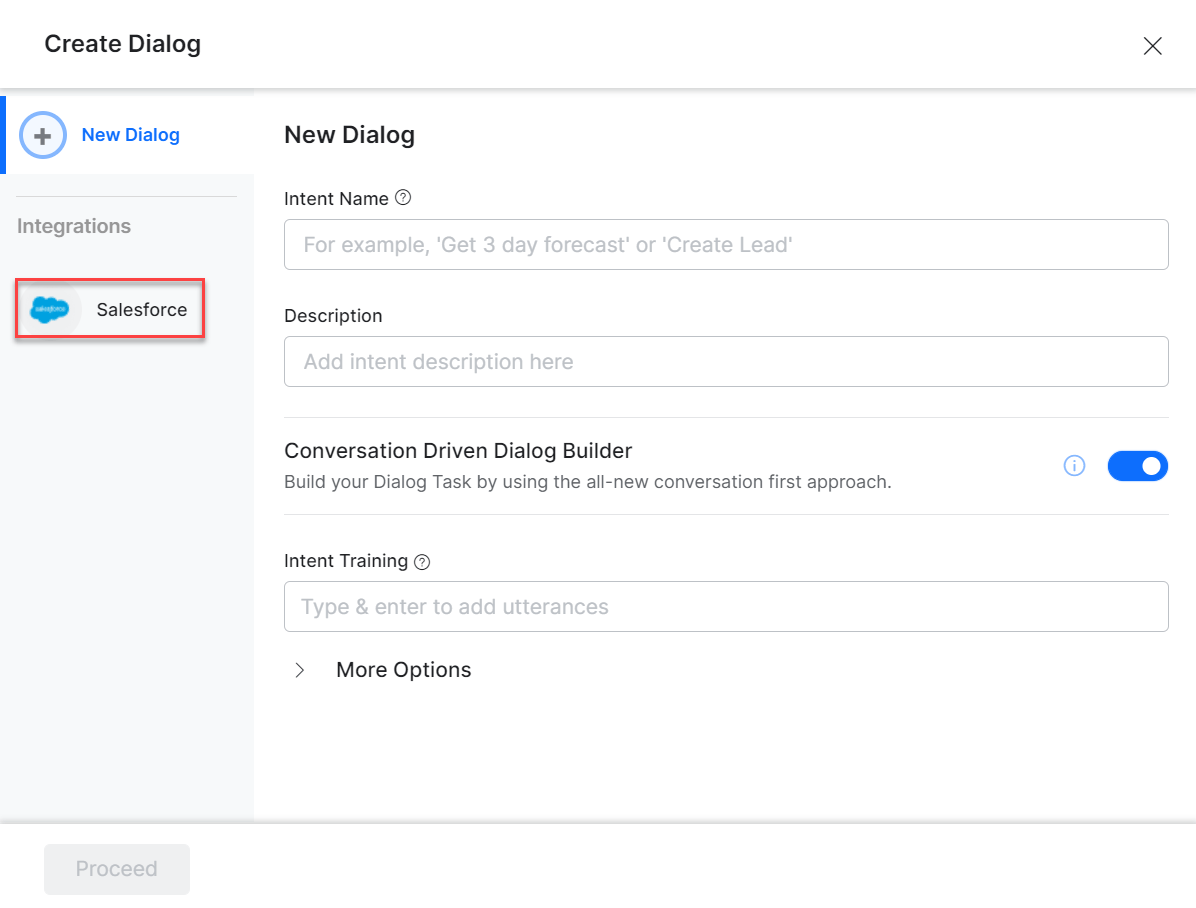 3. If no integration is configured, click **Explore Integrations** to set one up. See [Actions Overview](/ai-for-service/integrations/overview#actions).
***
## Supported Actions
| Task | Description | Method |
| --------------------- | ---------------------------------------- | ------ |
| Create a Lead | Creates a new marketing lead in the CRM. | POST |
| Create an Opportunity | Creates a new opportunity in the CRM. | POST |
| Update a Lead | Updates the lead with changes. | PATCH |
| View a Lead By ID | Retrieves the lead details. | GET |
| List All Leads | Retrieves all leads from the CRM. | GET |
| Search Leads | Searches all leads that match a keyword. | GET |
| Delete a Lead | Deletes a lead. | DELETE |
***
### Create a Lead
1. Install the template from [Salesforce Action Templates](/ai-for-service/integrations/actions/configuring-the-salesforce-crm-action#step-2-install-the-salesforce-action-templates).
2. The **Create a Lead** dialog task is added with the following components:
3. If no integration is configured, click **Explore Integrations** to set one up. See [Actions Overview](/ai-for-service/integrations/overview#actions).
***
## Supported Actions
| Task | Description | Method |
| --------------------- | ---------------------------------------- | ------ |
| Create a Lead | Creates a new marketing lead in the CRM. | POST |
| Create an Opportunity | Creates a new opportunity in the CRM. | POST |
| Update a Lead | Updates the lead with changes. | PATCH |
| View a Lead By ID | Retrieves the lead details. | GET |
| List All Leads | Retrieves all leads from the CRM. | GET |
| Search Leads | Searches all leads that match a keyword. | GET |
| Delete a Lead | Deletes a lead. | DELETE |
***
### Create a Lead
1. Install the template from [Salesforce Action Templates](/ai-for-service/integrations/actions/configuring-the-salesforce-crm-action#step-2-install-the-salesforce-action-templates).
2. The **Create a Lead** dialog task is added with the following components:
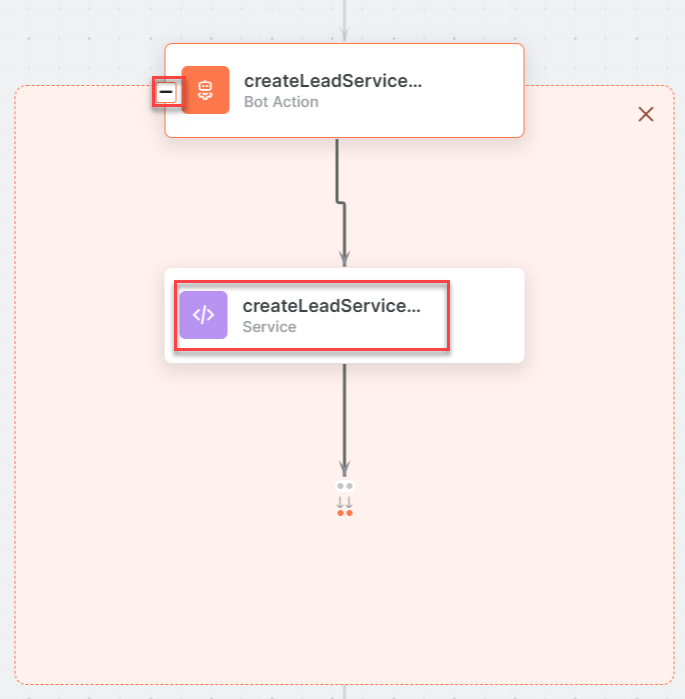 * **Createlead** - User intent to create a lead.
* **firstName**, **lastName**, **companyName** - Entity nodes for lead details.
* **CreateLeadService** - Bot action service to create a lead. Click **Edit Request**:
* **Createlead** - User intent to create a lead.
* **firstName**, **lastName**, **companyName** - Entity nodes for lead details.
* **CreateLeadService** - Bot action service to create a lead. Click **Edit Request**:
 **Sample Request:**
```json theme={null}
{
"attributes": {"type": "Lead"},
"LastName": "Doe",
"FirstName": "John",
"Company": "ABC",
"MobilePhone": "93445667xx",
"Status": "Open - Not Contacted",
"OwnerId": "0055g00000ECRvPAAX",
"IsConverted": false
}
```
Click **+Add Response**:
**Sample Request:**
```json theme={null}
{
"attributes": {"type": "Lead"},
"LastName": "Doe",
"FirstName": "John",
"Company": "ABC",
"MobilePhone": "93445667xx",
"Status": "Open - Not Contacted",
"OwnerId": "0055g00000ECRvPAAX",
"IsConverted": false
}
```
Click **+Add Response**:
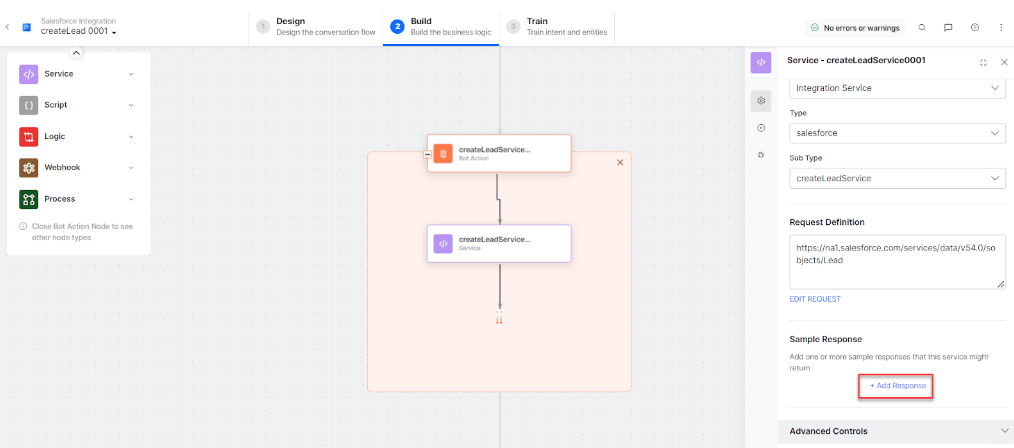 **Sample Response:**
```json theme={null}
{
"id": "00Q5g00000DZ0d4EAD",
"success": true,
"errors": []
}
```
* **subDomainService** - Bot action service to fetch subdomain.
**Sample Response:**
```json theme={null}
{
"id": "00Q5g00000DZ0d4EAD",
"success": true,
"errors": []
}
```
* **subDomainService** - Bot action service to fetch subdomain.
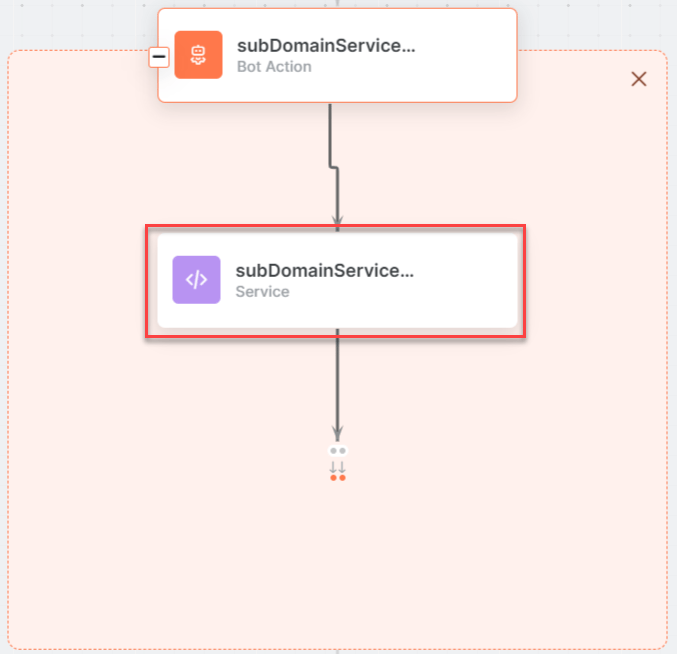 * **createLeadMessage** - Message node to display responses.
3. Click **Train**, then **Talk to Bot** to test:
* **createLeadMessage** - Message node to display responses.
3. Click **Train**, then **Talk to Bot** to test:
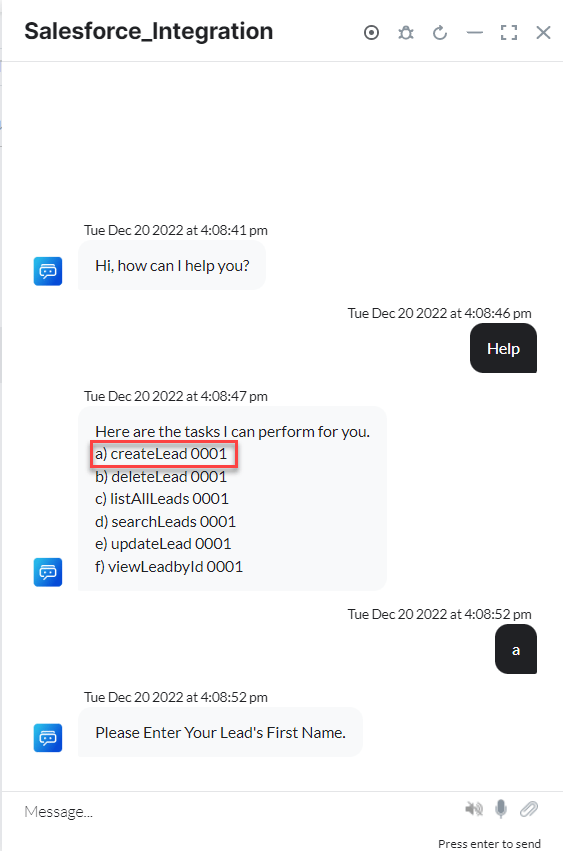 4. Enter lead details when prompted:
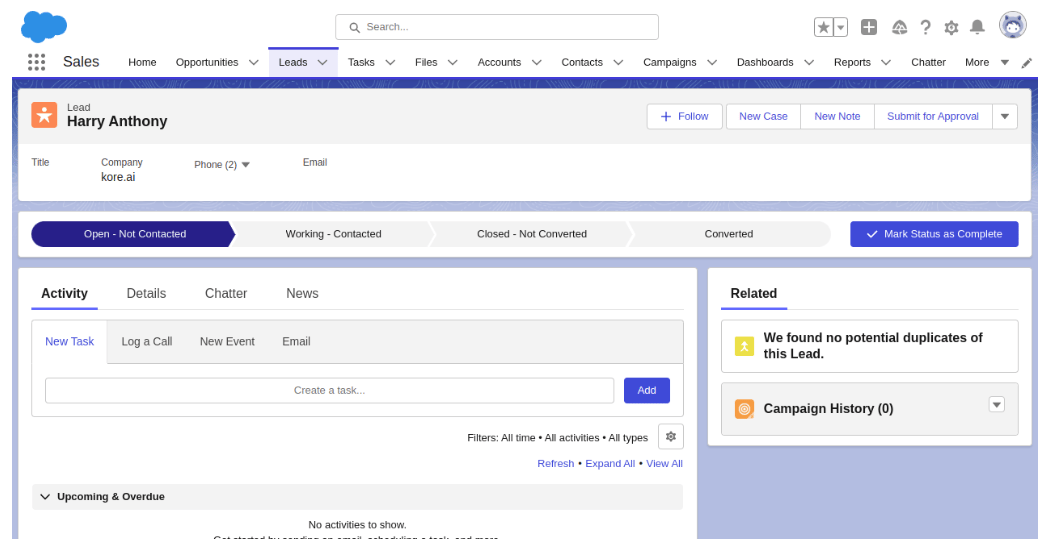
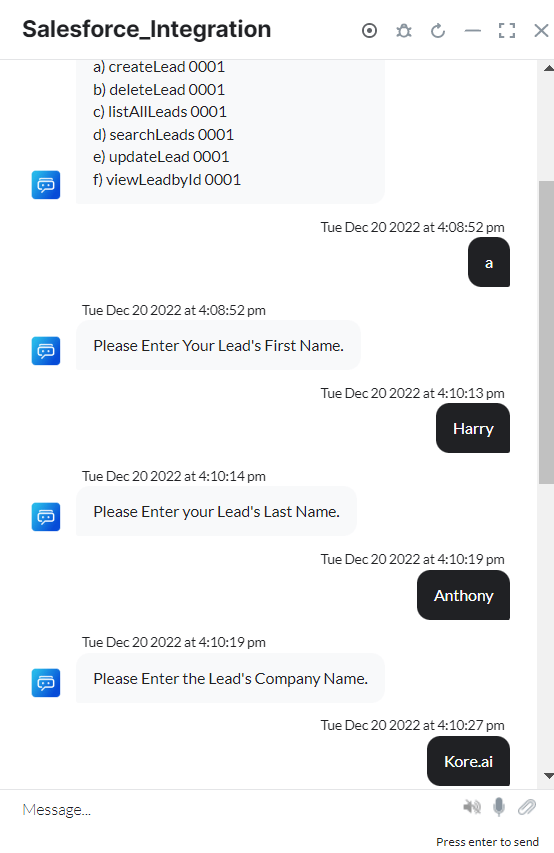 5. The new lead is created in Salesforce CRM:
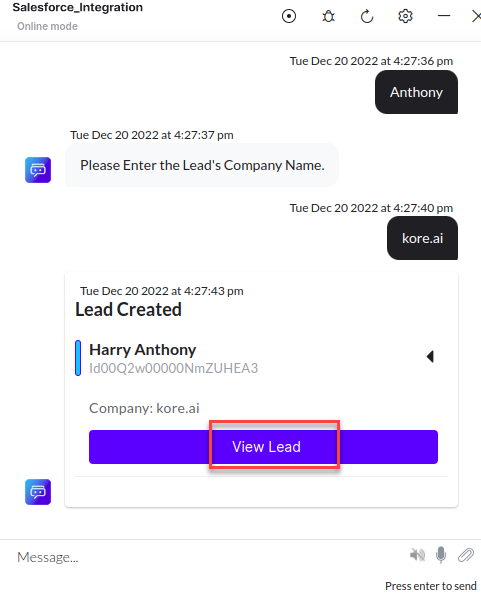 6. Click **View Lead** to see lead details:
 ***
### Update a Lead
1. Install the template from [Salesforce Action Templates](/ai-for-service/integrations/actions/configuring-the-salesforce-crm-action#step-2-install-the-salesforce-action-templates).
2. The **Update a Lead** dialog task is added with the following components:
***
### Update a Lead
1. Install the template from [Salesforce Action Templates](/ai-for-service/integrations/actions/configuring-the-salesforce-crm-action#step-2-install-the-salesforce-action-templates).
2. The **Update a Lead** dialog task is added with the following components:
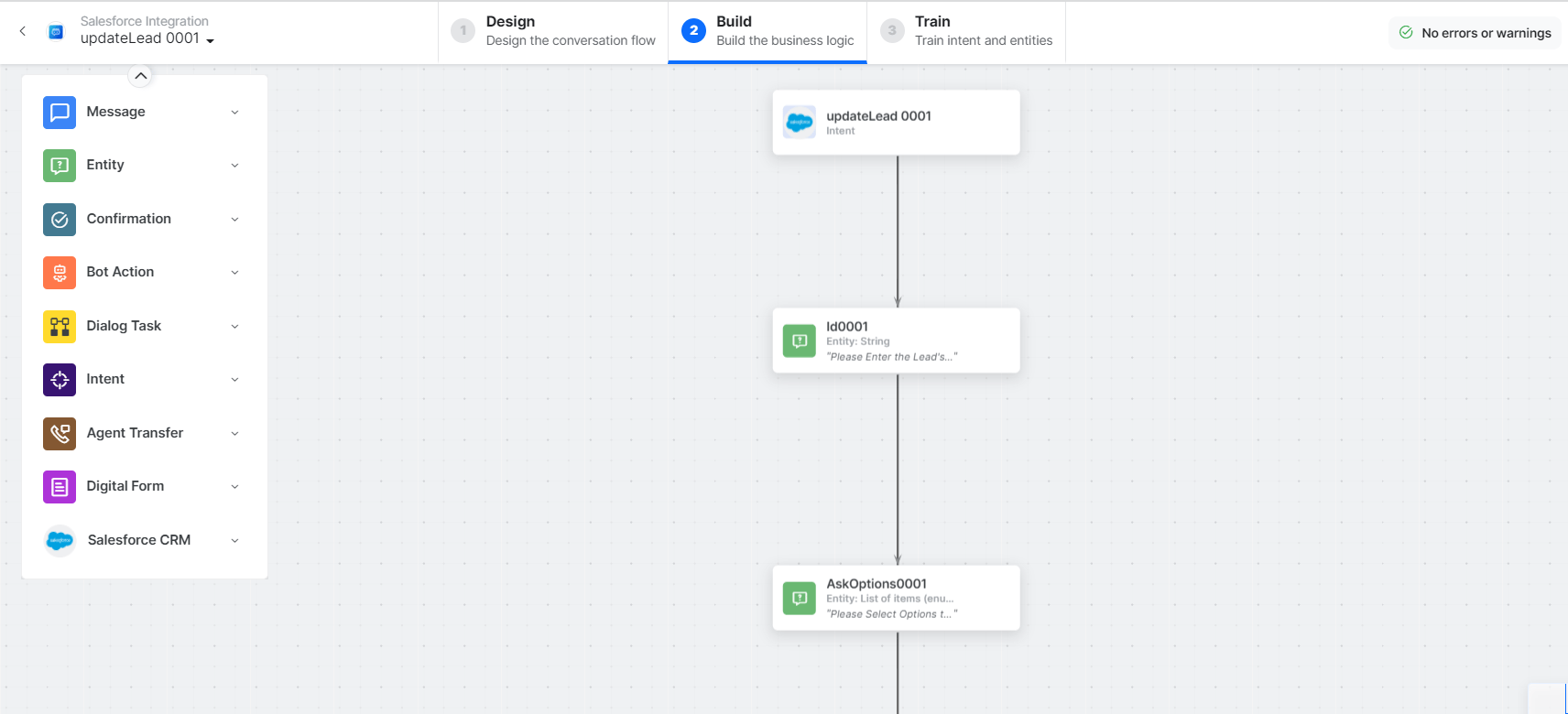 * **Update lead** - User intent to update a lead.
* **Id**, **AskOptions**, **LeadStatus**, **Title**, **MobilePhone** - Entity nodes for update details.
* **updateLeadScript** - Bot action script to update a lead.
* **Update lead** - User intent to update a lead.
* **Id**, **AskOptions**, **LeadStatus**, **Title**, **MobilePhone** - Entity nodes for update details.
* **updateLeadScript** - Bot action script to update a lead.
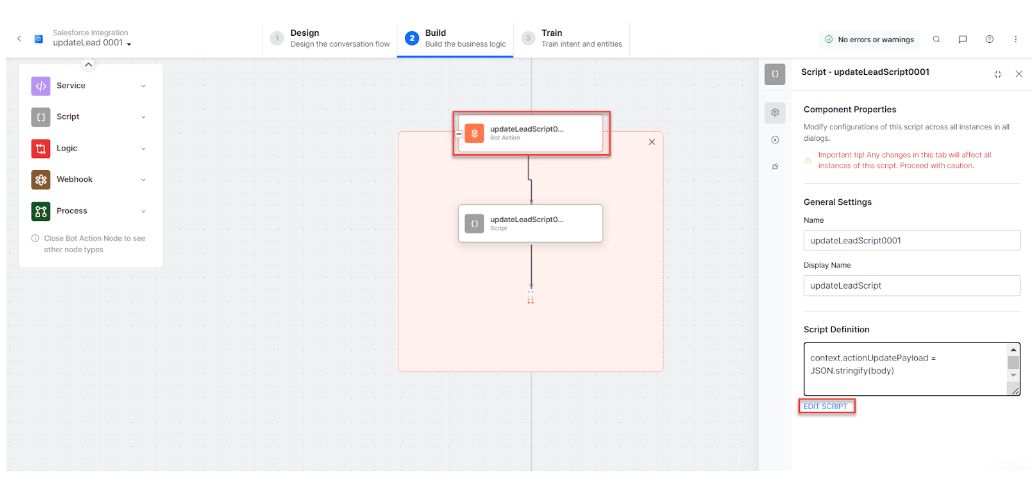 * **updateLeadService** - Bot action service to update a lead.
* **subDomainService** - Bot action service to fetch subdomain.
* **updateLeadMessage** - Message node to display responses.
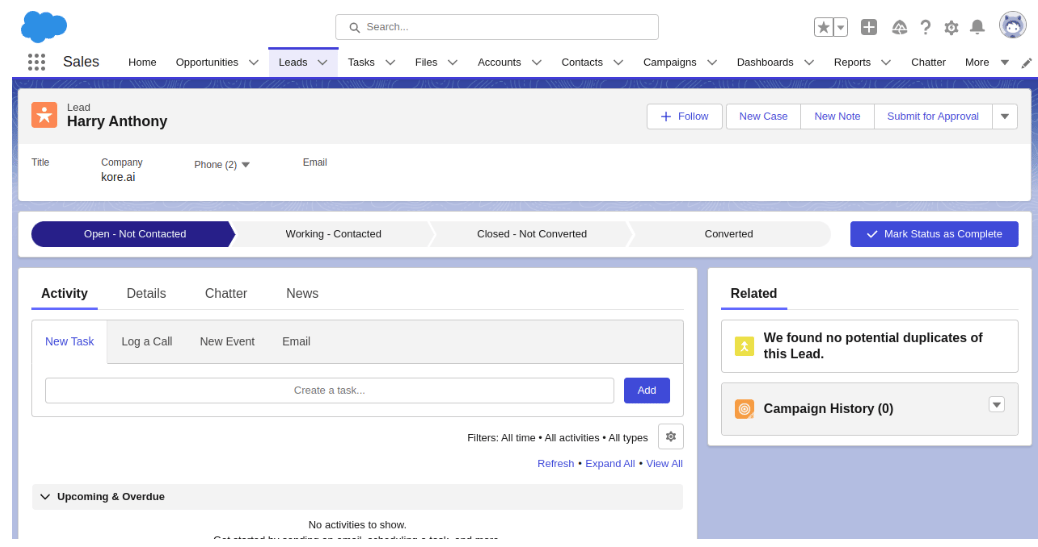
3. Click **Train**, then **Talk to Bot** to test. After entering lead details, the lead is updated in Salesforce CRM. Click **View Lead** to see updated details:
* **updateLeadService** - Bot action service to update a lead.
* **subDomainService** - Bot action service to fetch subdomain.
* **updateLeadMessage** - Message node to display responses.
3. Click **Train**, then **Talk to Bot** to test. After entering lead details, the lead is updated in Salesforce CRM. Click **View Lead** to see updated details:
 ***
### Delete a Lead
1. Install the template from [Salesforce Action Templates](/ai-for-service/integrations/actions/configuring-the-salesforce-crm-action#step-2-install-the-salesforce-action-templates).
2. The **Delete Lead** dialog task is added with the following components:
***
### Delete a Lead
1. Install the template from [Salesforce Action Templates](/ai-for-service/integrations/actions/configuring-the-salesforce-crm-action#step-2-install-the-salesforce-action-templates).
2. The **Delete Lead** dialog task is added with the following components:
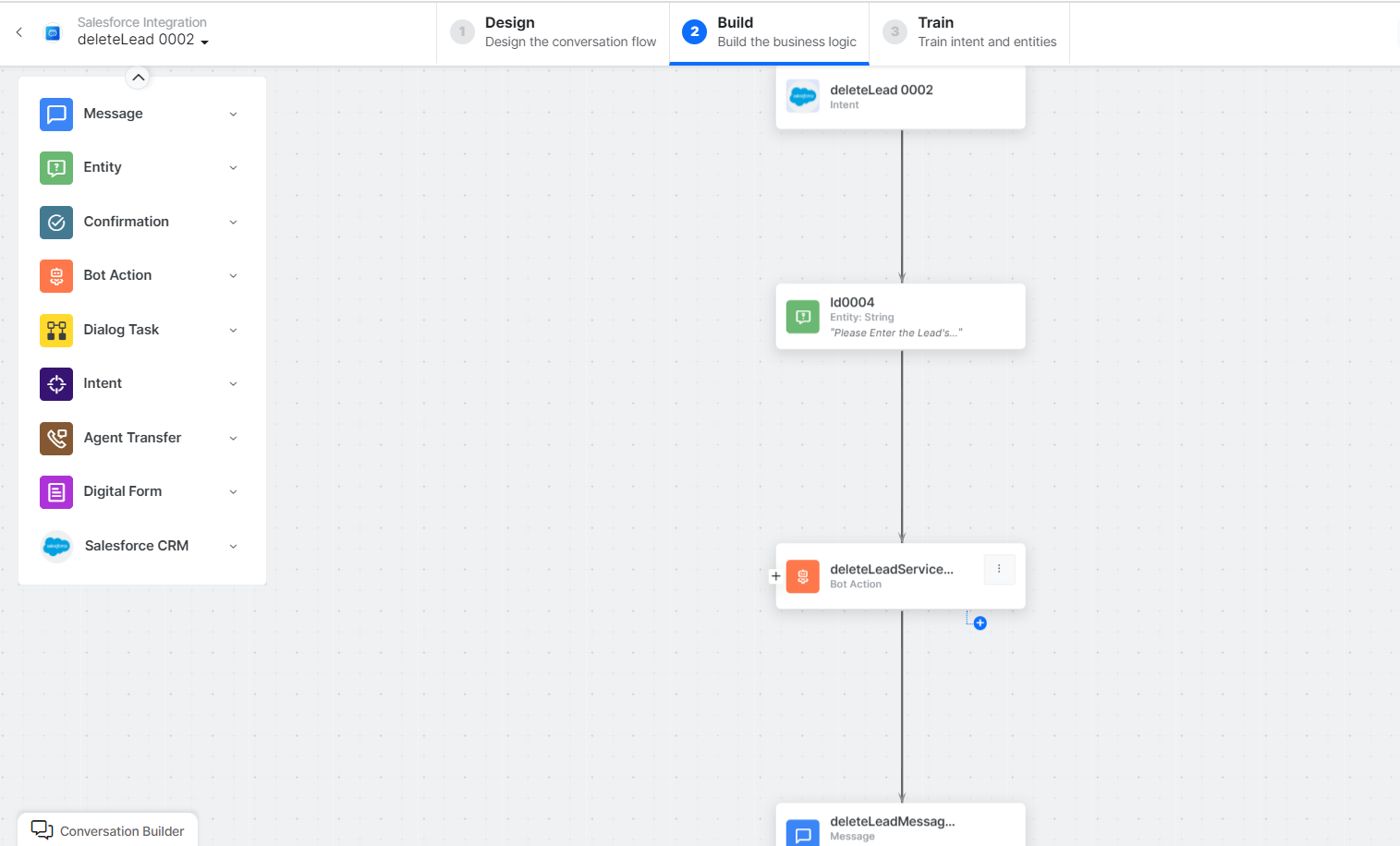 * **Delete Lead** - User intent to delete a lead.
* **ID** - Entity node for the lead ID.
* **deleteLeadService** - Bot action service to delete a lead.
* **Delete Lead** - User intent to delete a lead.
* **ID** - Entity node for the lead ID.
* **deleteLeadService** - Bot action service to delete a lead.
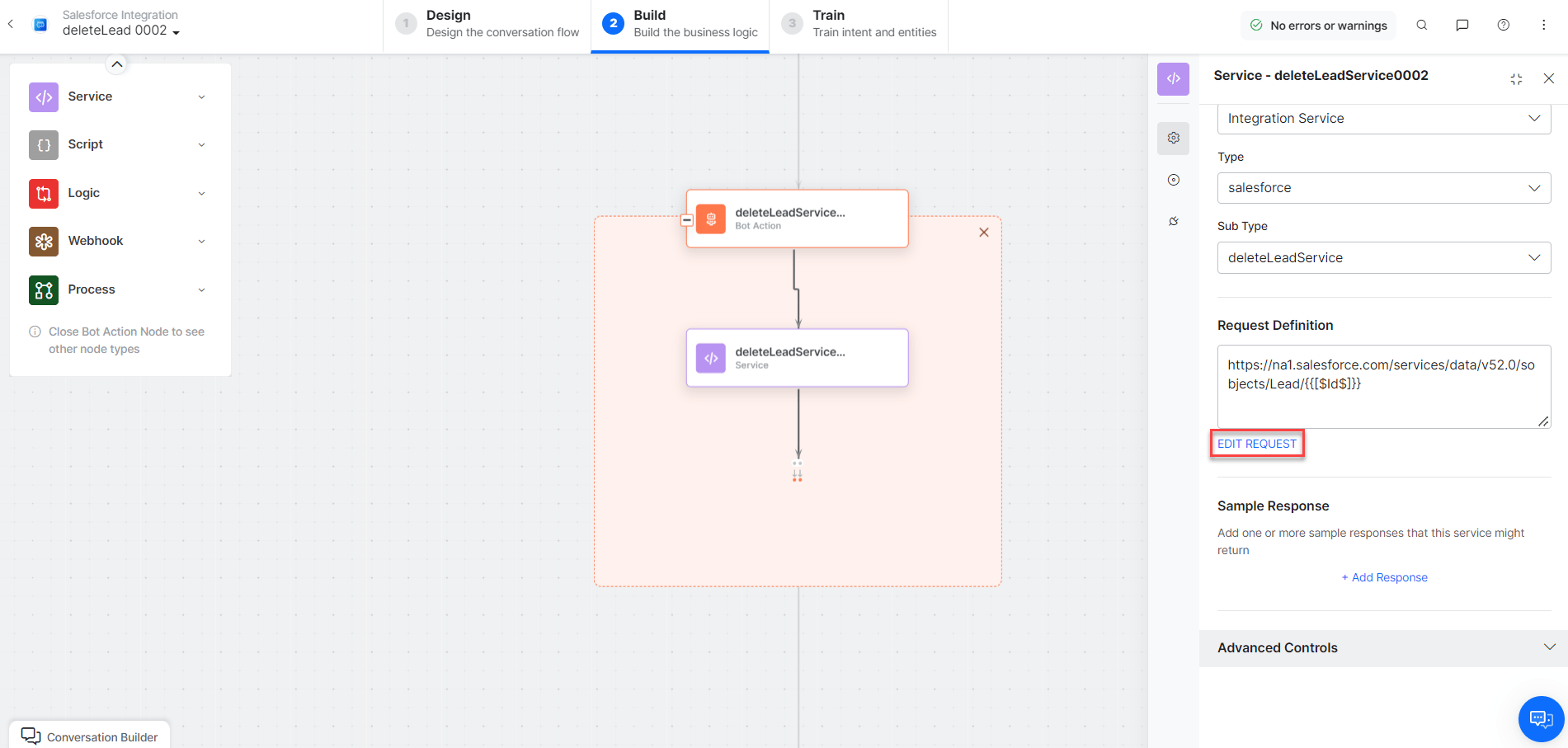 * **deleteLeadMessage** - Message node to display responses.
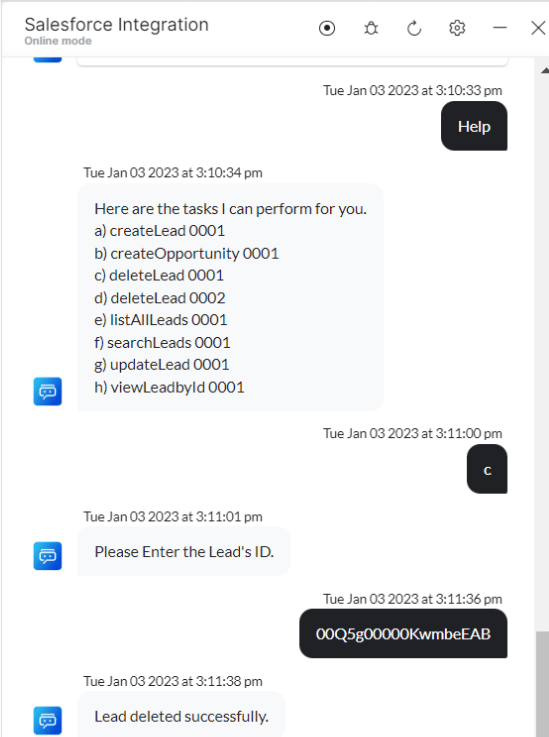
3. Click **Train**, then **Talk to Bot** to test:
* **deleteLeadMessage** - Message node to display responses.
3. Click **Train**, then **Talk to Bot** to test:
 ***
### List All Leads
1. Install the template from [Salesforce Action Templates](/ai-for-service/integrations/actions/configuring-the-salesforce-crm-action#step-2-install-the-salesforce-action-templates).
2. The **List All Leads** dialog task is added with the following components:
***
### List All Leads
1. Install the template from [Salesforce Action Templates](/ai-for-service/integrations/actions/configuring-the-salesforce-crm-action#step-2-install-the-salesforce-action-templates).
2. The **List All Leads** dialog task is added with the following components:
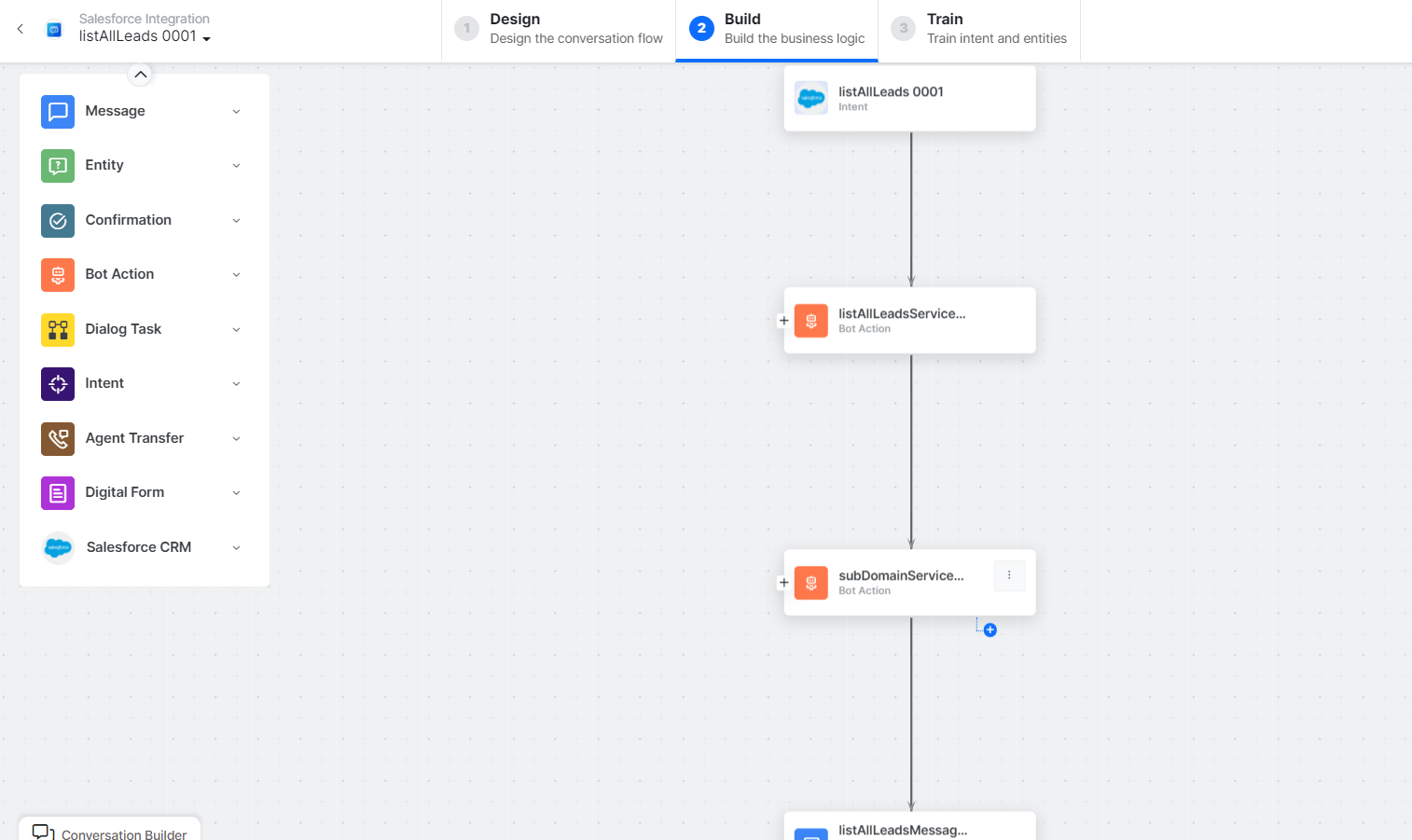 * **List All Lead** - User intent to list all leads.
* **listAllLeadsService** - Bot action service to fetch all leads. Click **+Add Response**:
* **List All Lead** - User intent to list all leads.
* **listAllLeadsService** - Bot action service to fetch all leads. Click **+Add Response**:
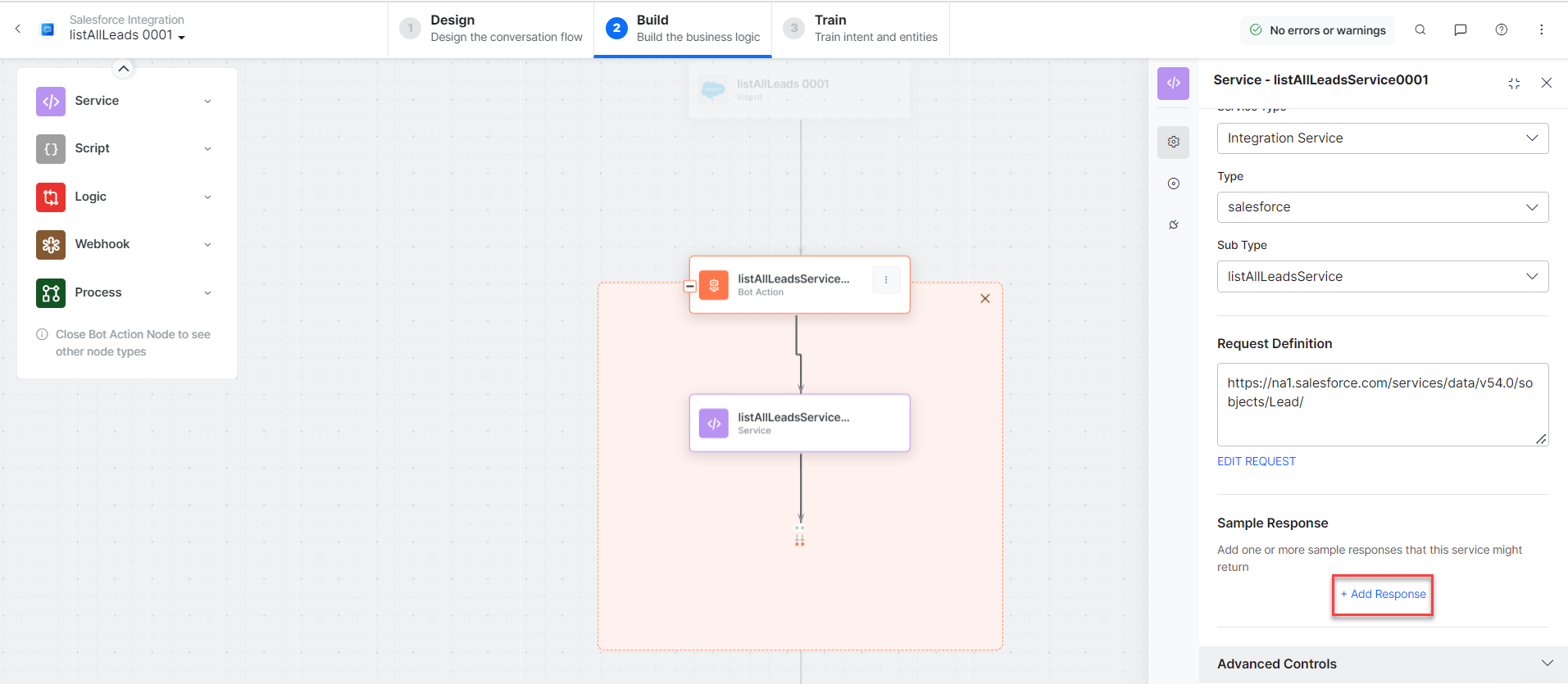 * **subDomainService** - Bot action service to fetch subdomain.
* **listAllLeadsMessage** - Message node to display responses.
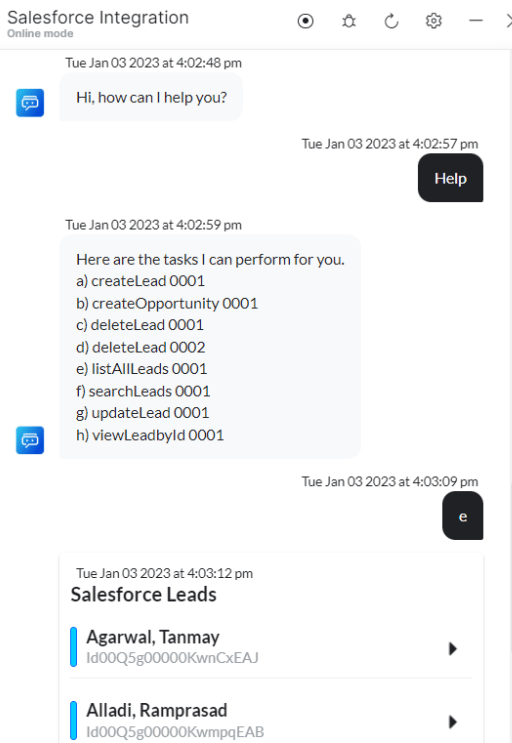
3. Click **Train**, then **Talk to Bot** to test:
* **subDomainService** - Bot action service to fetch subdomain.
* **listAllLeadsMessage** - Message node to display responses.
3. Click **Train**, then **Talk to Bot** to test:
 ***
### View a Lead By ID
1. Install the template from [Salesforce Action Templates](/ai-for-service/integrations/actions/configuring-the-salesforce-crm-action#step-2-install-the-salesforce-action-templates).
2. The **View Lead by Id** dialog task is added with the following components:
***
### View a Lead By ID
1. Install the template from [Salesforce Action Templates](/ai-for-service/integrations/actions/configuring-the-salesforce-crm-action#step-2-install-the-salesforce-action-templates).
2. The **View Lead by Id** dialog task is added with the following components:
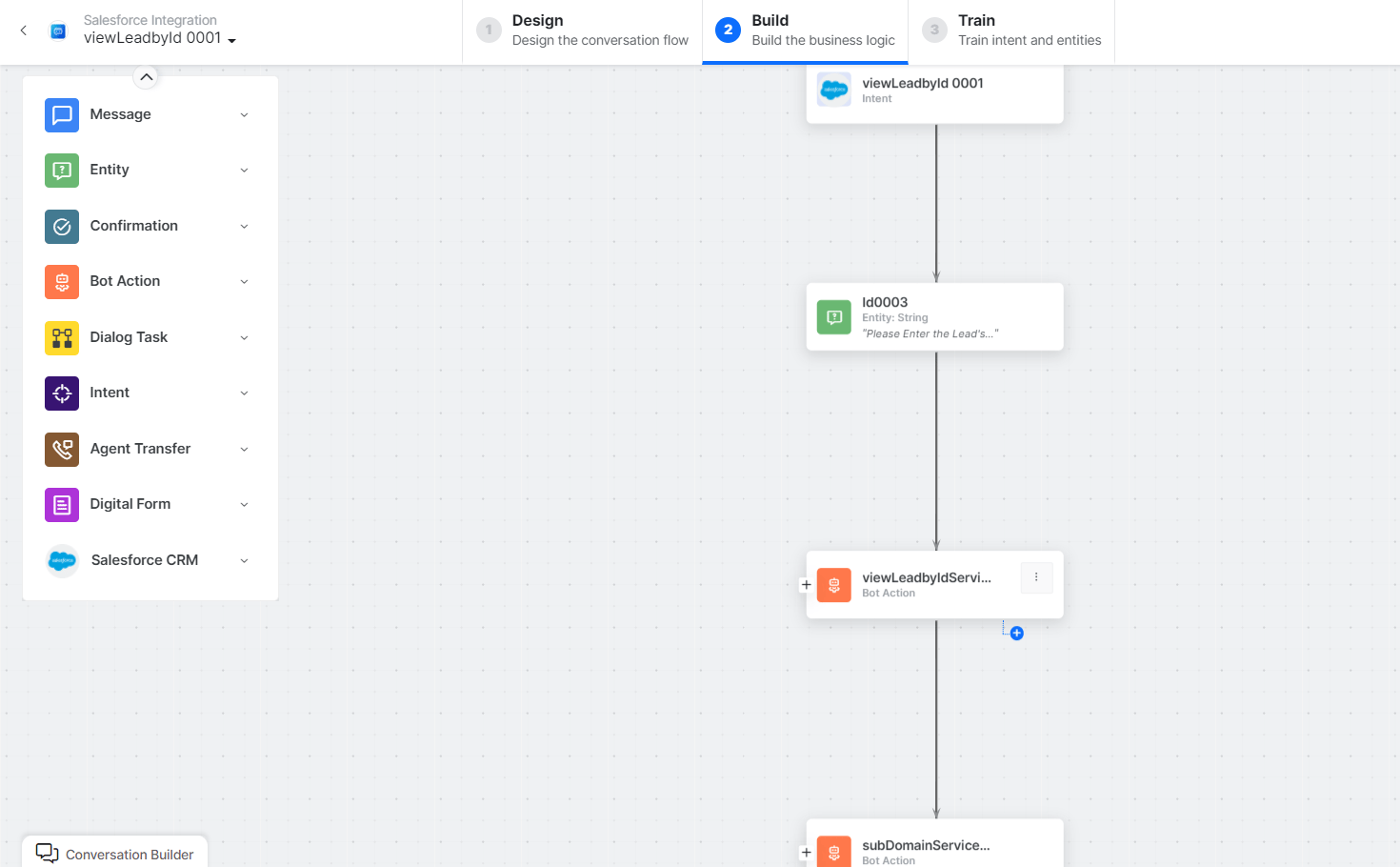 * **View Lead by Id** - User intent to view a lead by ID.
* **ID** - Entity node for the lead ID.
* **viewLeadbyIdService** - Bot action service to view a lead by ID. Click **+Add Response**:
* **View Lead by Id** - User intent to view a lead by ID.
* **ID** - Entity node for the lead ID.
* **viewLeadbyIdService** - Bot action service to view a lead by ID. Click **+Add Response**:
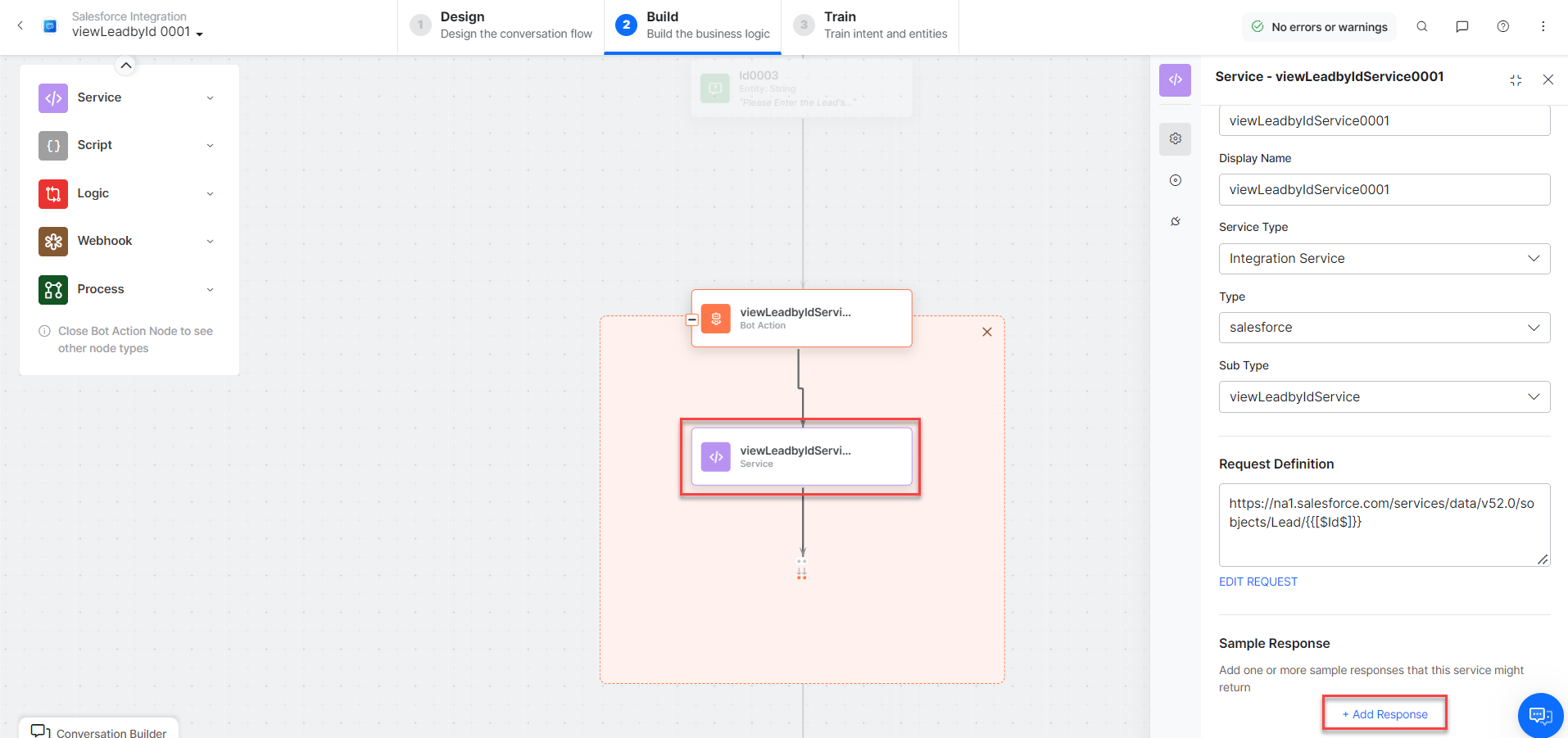 * **subDomainService** - Bot action service to fetch subdomain.
* **viewLeadbyIdMessage** - Message node to display responses.
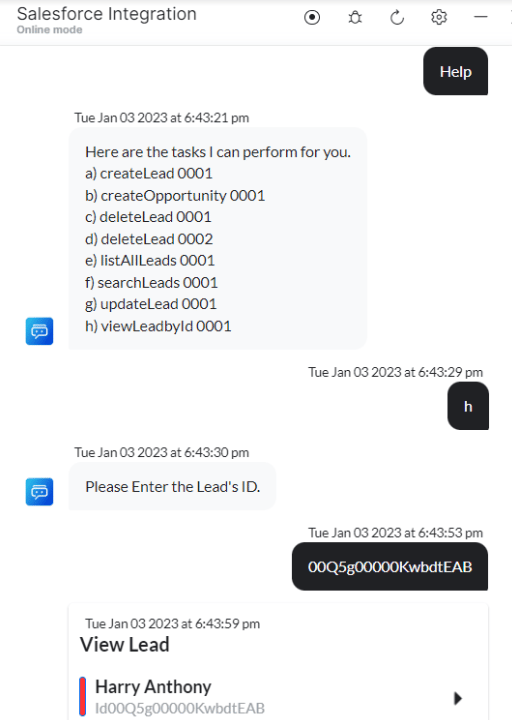
3. Click **Train**, then **Talk to Bot** to test:
* **subDomainService** - Bot action service to fetch subdomain.
* **viewLeadbyIdMessage** - Message node to display responses.
3. Click **Train**, then **Talk to Bot** to test:
 ***
### Search Leads
1. Install the template from [Salesforce Action Templates](/ai-for-service/integrations/actions/configuring-the-salesforce-crm-action#step-2-install-the-salesforce-action-templates).
2. The **Search Leads** dialog task is added with the following components:
***
### Search Leads
1. Install the template from [Salesforce Action Templates](/ai-for-service/integrations/actions/configuring-the-salesforce-crm-action#step-2-install-the-salesforce-action-templates).
2. The **Search Leads** dialog task is added with the following components:
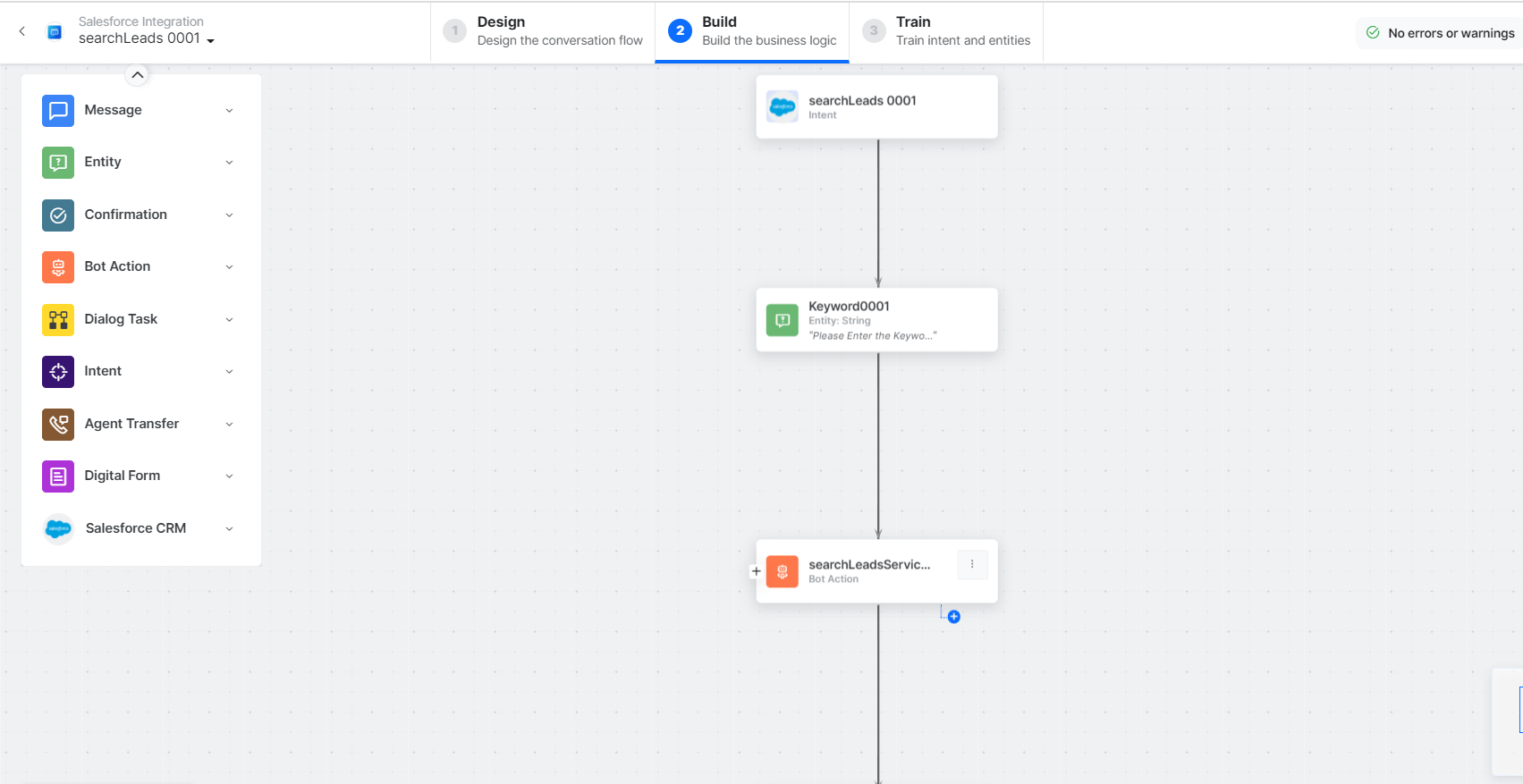 * **Search Leads** - User intent to search leads.
* **Keyword** - Entity node for search keywords.
* **searchLeadsService** - Bot action service to search leads. Click **+Add Response**:
* **Search Leads** - User intent to search leads.
* **Keyword** - Entity node for search keywords.
* **searchLeadsService** - Bot action service to search leads. Click **+Add Response**:
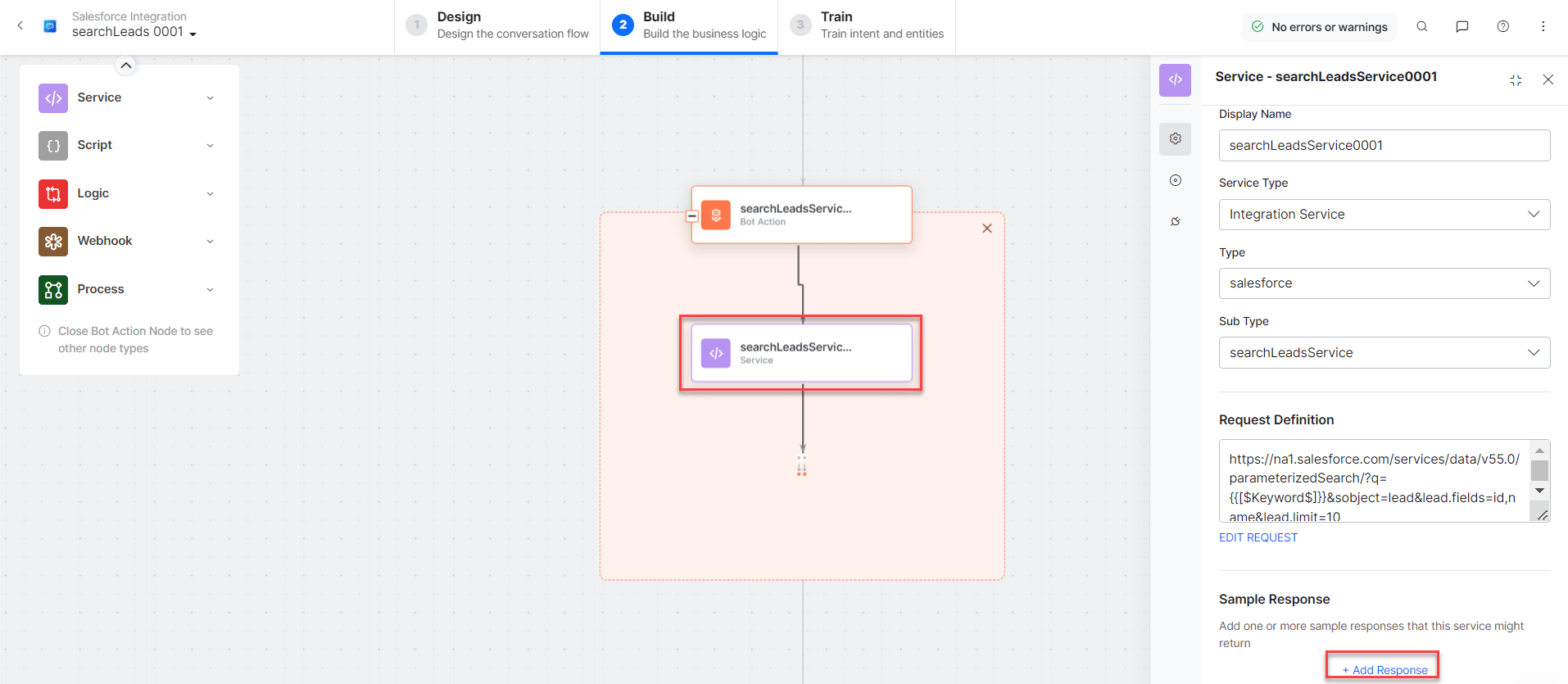 * **subDomainService** - Bot action service to fetch subdomain.
* **searchLeadsMessage** - Message node to display responses.
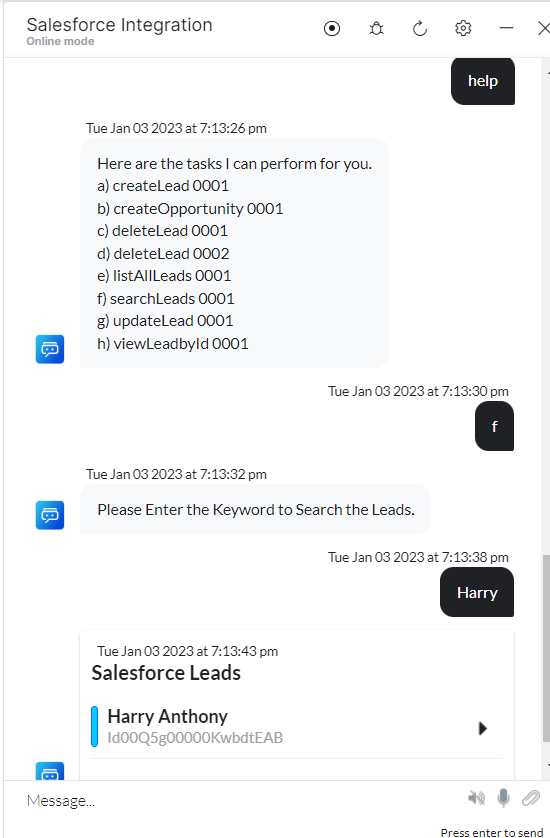
3. Click **Train**, then **Talk to Bot** to test:
* **subDomainService** - Bot action service to fetch subdomain.
* **searchLeadsMessage** - Message node to display responses.
3. Click **Train**, then **Talk to Bot** to test:
 ***
### Create an Opportunity
1. Install the template from [Salesforce Action Templates](/ai-for-service/integrations/actions/configuring-the-salesforce-crm-action#step-2-install-the-salesforce-action-templates).
2. The **Create Opportunity** dialog task is added with the following components:
***
### Create an Opportunity
1. Install the template from [Salesforce Action Templates](/ai-for-service/integrations/actions/configuring-the-salesforce-crm-action#step-2-install-the-salesforce-action-templates).
2. The **Create Opportunity** dialog task is added with the following components:
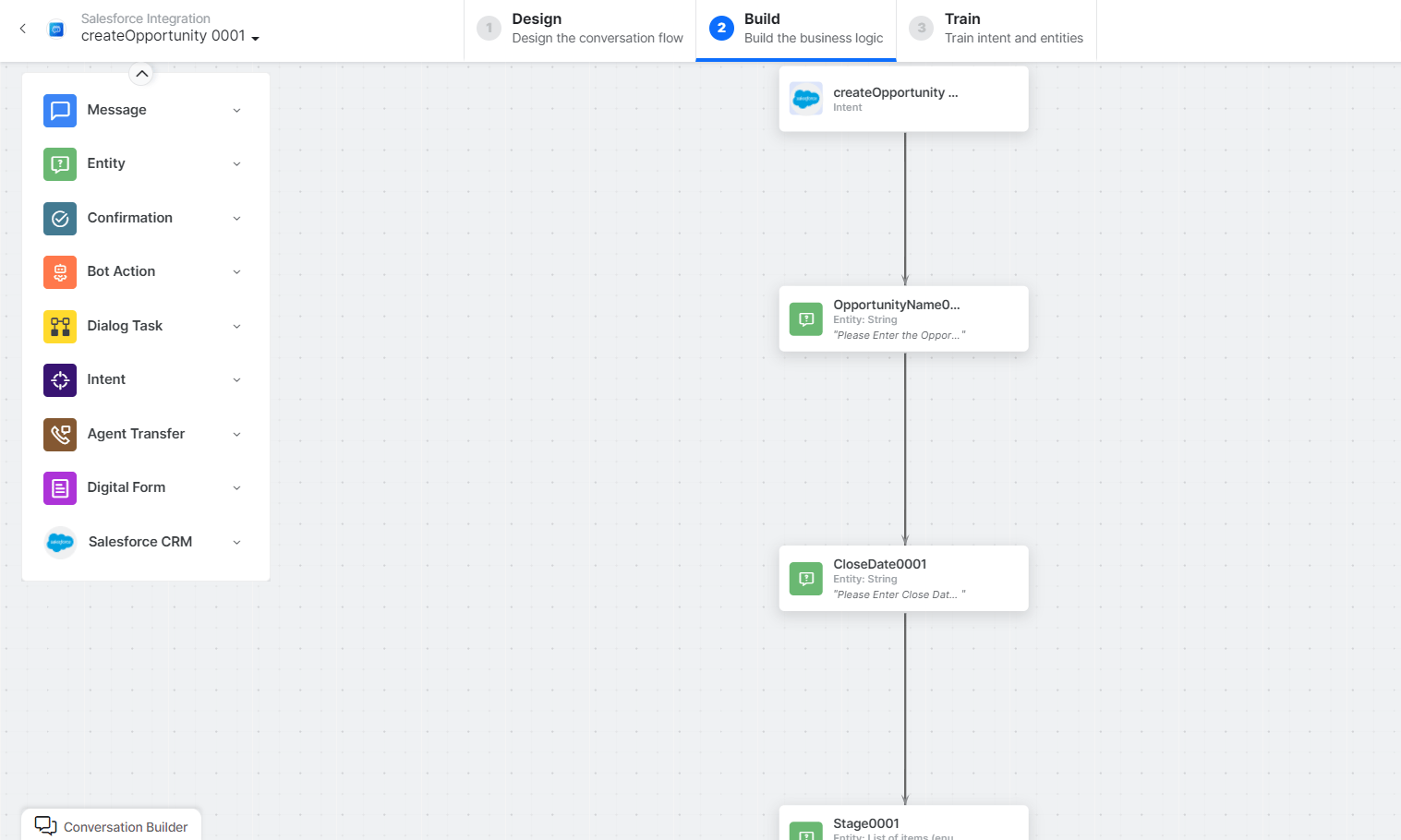 * **Create Opportunity** - User intent to create an opportunity.
* **Opportunity Name**, **Closed Date**, **Stage of Opportunity** - Entity nodes for opportunity details.
* **CreateOpportunityService** - Bot action service to create an opportunity. Click **Edit Request**:
* **Create Opportunity** - User intent to create an opportunity.
* **Opportunity Name**, **Closed Date**, **Stage of Opportunity** - Entity nodes for opportunity details.
* **CreateOpportunityService** - Bot action service to create an opportunity. Click **Edit Request**:
 **Sample Request:**
```json theme={null}
{
"attributes": {"type": "Opportunity"},
"Name": "Project Charlie",
"CloseDate": "2022-08-31",
"StageName": "Prospecting"
}
```
Click **+Add Response**:
**Sample Request:**
```json theme={null}
{
"attributes": {"type": "Opportunity"},
"Name": "Project Charlie",
"CloseDate": "2022-08-31",
"StageName": "Prospecting"
}
```
Click **+Add Response**:
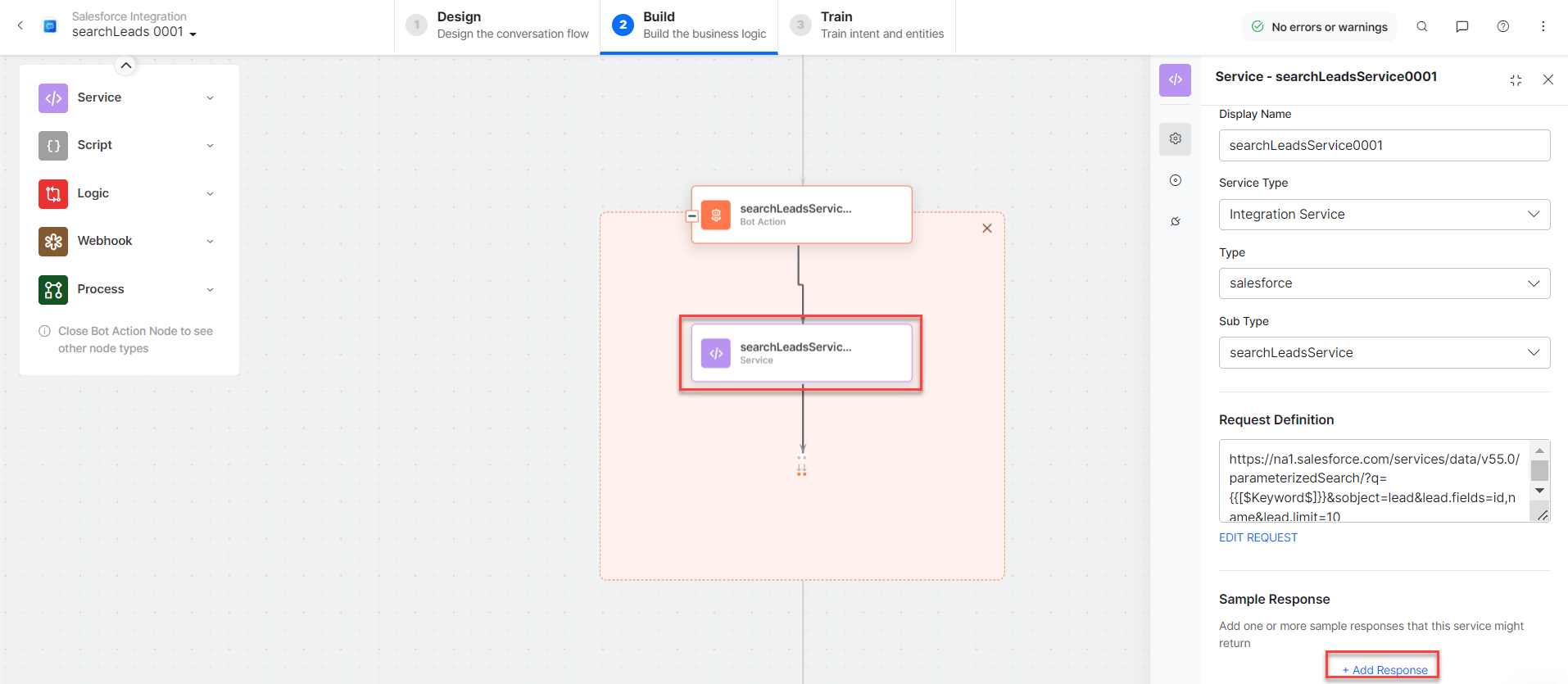 **Sample Response:**
```json theme={null}
{
"id": "0065g00000O4bgDAAR",
"success": true,
"errors": []
}
```
* **subDomainService** - Bot action service to add subdomain.
* **createOpportunityMessage** - Message node to display responses.
3. Click **Train**, then **Talk to Bot** to test:
**Sample Response:**
```json theme={null}
{
"id": "0065g00000O4bgDAAR",
"success": true,
"errors": []
}
```
* **subDomainService** - Bot action service to add subdomain.
* **createOpportunityMessage** - Message node to display responses.
3. Click **Train**, then **Talk to Bot** to test:
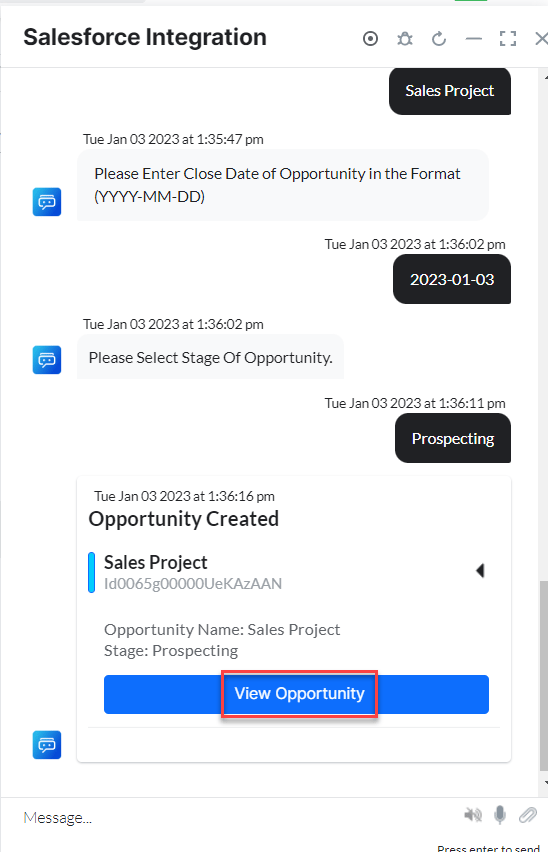
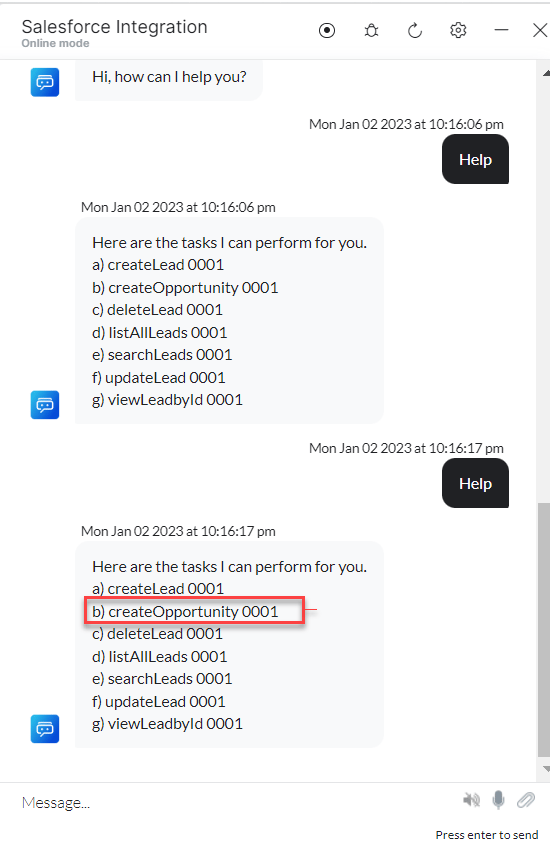 4. Click the **Chevron** icon to expand the new opportunity:
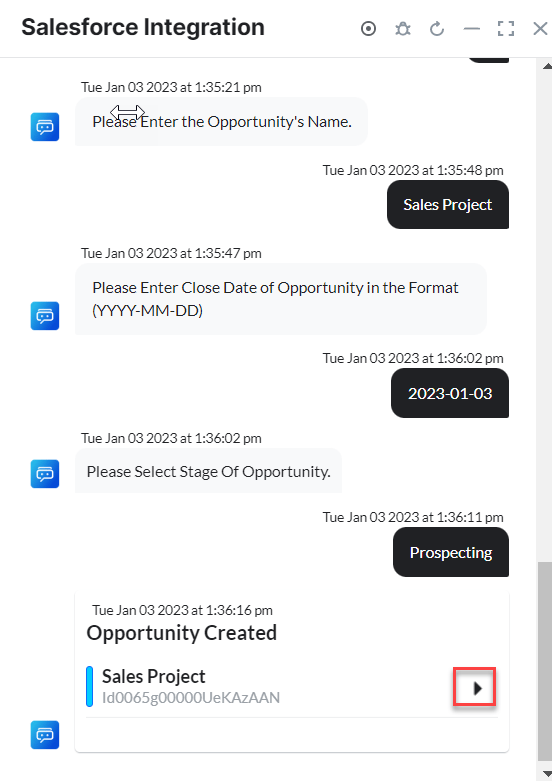 5. Click **View Opportunity** to see opportunity details in Salesforce CRM: